Setup
Once you have set up your user account as described below, you will be able to access any host that is registered with SSH Connect.
To set up your user account for SSH Gateway, two pieces of information are needed:
- An SSH username. This name will identify you to Webscale, and must be globally unique among Webscale users.
- One or more SSH public keys. These keys are used to verify your identity.
Username
You already have an SSH username that is automatically assigned. You can see it on your profile page .
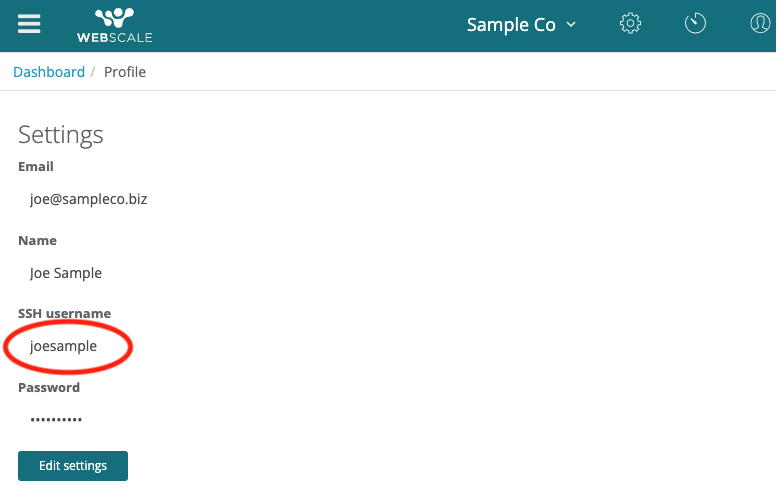
You can change your SSH username on the profile page. Be aware that past usernames cannot be reused in the future, even by the same user.
Public Keys
SSH keypairs are the preferred system of securing access to servers without using account passwords. An SSH keypair consists of a public key and a private key that are generated together.
The private key is never uploaded into Webscale systems, and remains with the user. The public key can be shared freely, and this is what is shared with Webscale.
To generate a keypair on Mac or Linux, or anywhere the ssh command line tool
is installed (e.g., WSL2
for Windows), you can use the ssh-keygen tool:
ssh-keygen -f ~/.ssh/webscale
This will generate a keypair and store it in two files, webscale (private
key) and webscale.pub (public key), in the .ssh directory of your home
folder.
You should now configure SSH to use this keypair when accessing SSH Gateway. Run the following command in a terminal to add the necessary config:
echo "Host ssh.webscale.com\n\tIdentityFile ~/.ssh/webscale" >> ~/.ssh/config
Next, copy the contents of webscale.pub. You can show it on the command line
with the command:
cat ~/.ssh/webscale.pub
Now, navigate to your profile page ,
scroll to the SSH public keys section, and click the button labeled
Add SSH public key. Paste the contents of webscale.pub into the field
labeled Public key, and click Save.
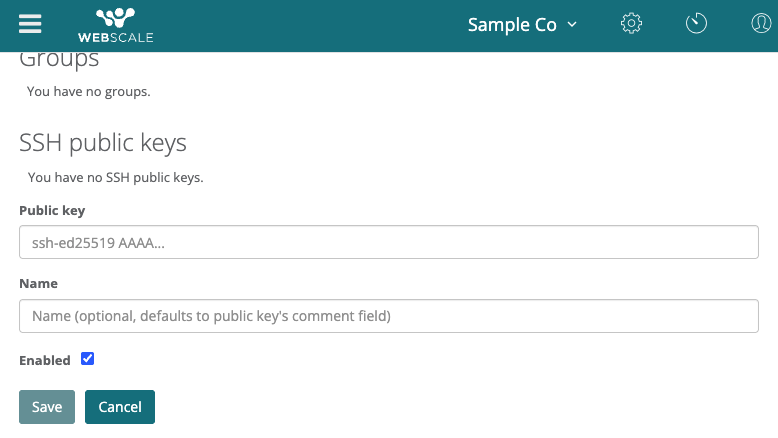
You should see the key appear above the Add SSH public key button. You can upload up to three SSH public keys.
Ready
Once you know your SSH username and have uploaded a public key, you are ready to connect to any host that is accessible from SSH Connect. See Connecting to Hosts for instructions on using SSH, SCP, SFTP, and port forwarding.