Connecting with FileZilla
How to connect FileZilla to Webscale servers via SSH Gateway
This guide shows you how to configure FileZilla to access your application files through the Webscale SSH Gateway.
Prerequisites
- An SSH Key pair added to your Webscale user profile.
- The SSH Gateway hostname
-
ssh.webscale.com. - Your Application HOSTNAME (e.g.,
myapp-staging).
Step 1: Configure General Connection Settings
- Open FileZilla and navigate to File > Site Manager.
- Click New Site and name it (e.g., “Webscale SSH Gateway”).
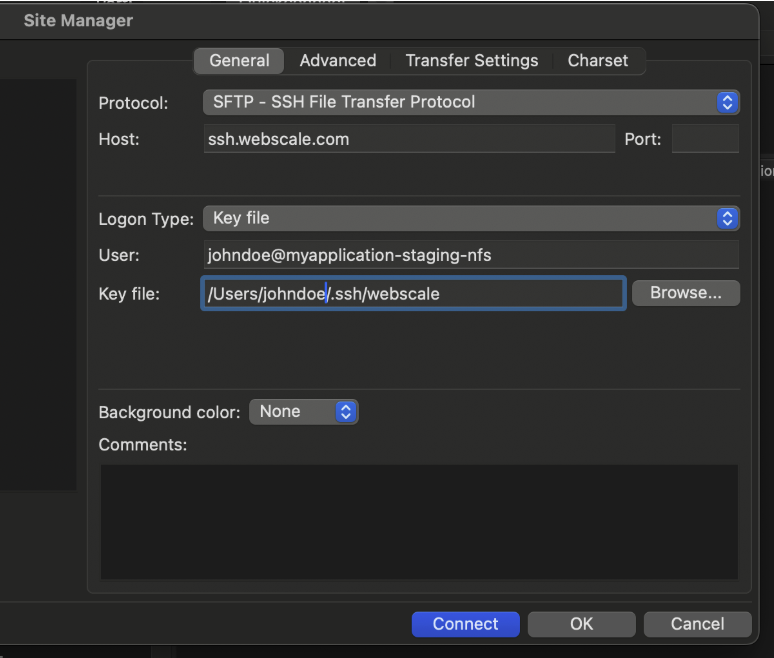
- Set Protocol to
SFTP - SSH File Transfer Protocol. - Set Host to your assigned gateway address (e.g.,
ssh.webscale.com). - Set Logon Type to
Key file.
Step 2: Set the User String and Key
In the User field, you must use the specific gateway format: <your_username>@<application-hostname>
Example: jdoe@myapp-staging-nfs
Finally, browse to and select your Private Key file.
Step 3: Connect
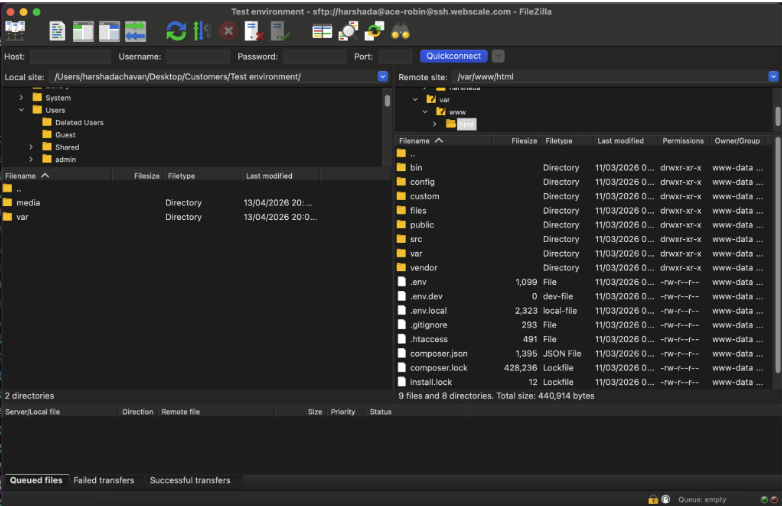
Click Connect. If prompted about an unknown host key, verify the fingerprint and click OK. You should now see your remote directory tree.
Here is an example of what you should see:
Have questions not answered here?
Contact Support
to get more help.
Last modified on June 3, 2026