Clearing Browser Cache
Some of the files a browser will store are:
- Images
- HTML
- CSS
- JavaScript
- Cookies
Sometimes, especially when testing for changes on a store, the browser will display content from its cache storage rather than retrieve a new version of the asset files from the server. In these cases, it may be necessary to clear the browser cache.
If Webscale STRATUS Support recommends clearing your browser cache, refer to these instructions.
Please note that browser are often updated. These instructions may be slightly different as updates occur.
Google Chrome
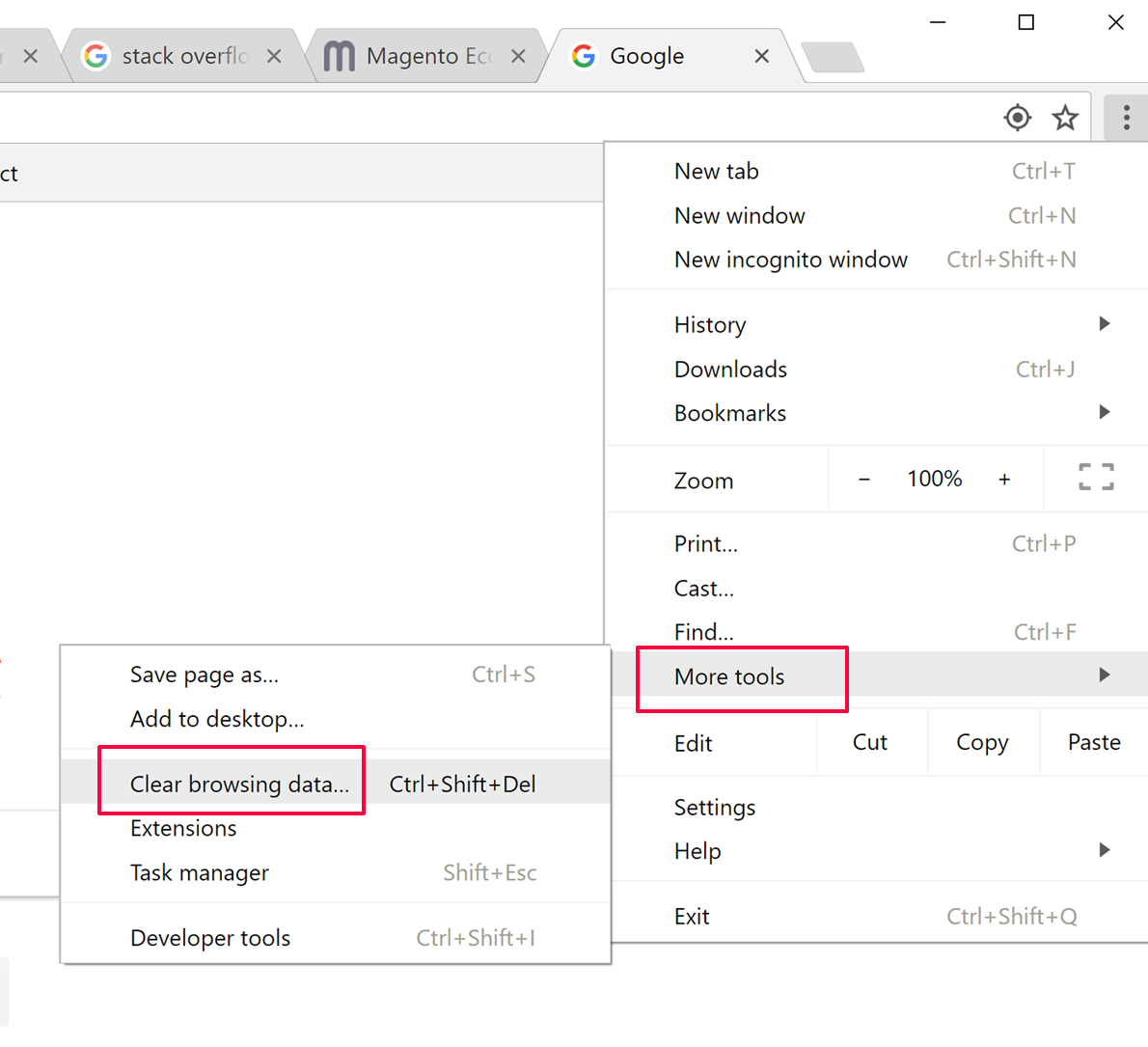
Click the Menu button just to the right of the website address bar (the vertical ellipsis icon).
Go to More Tools > Clear Browsing Data…
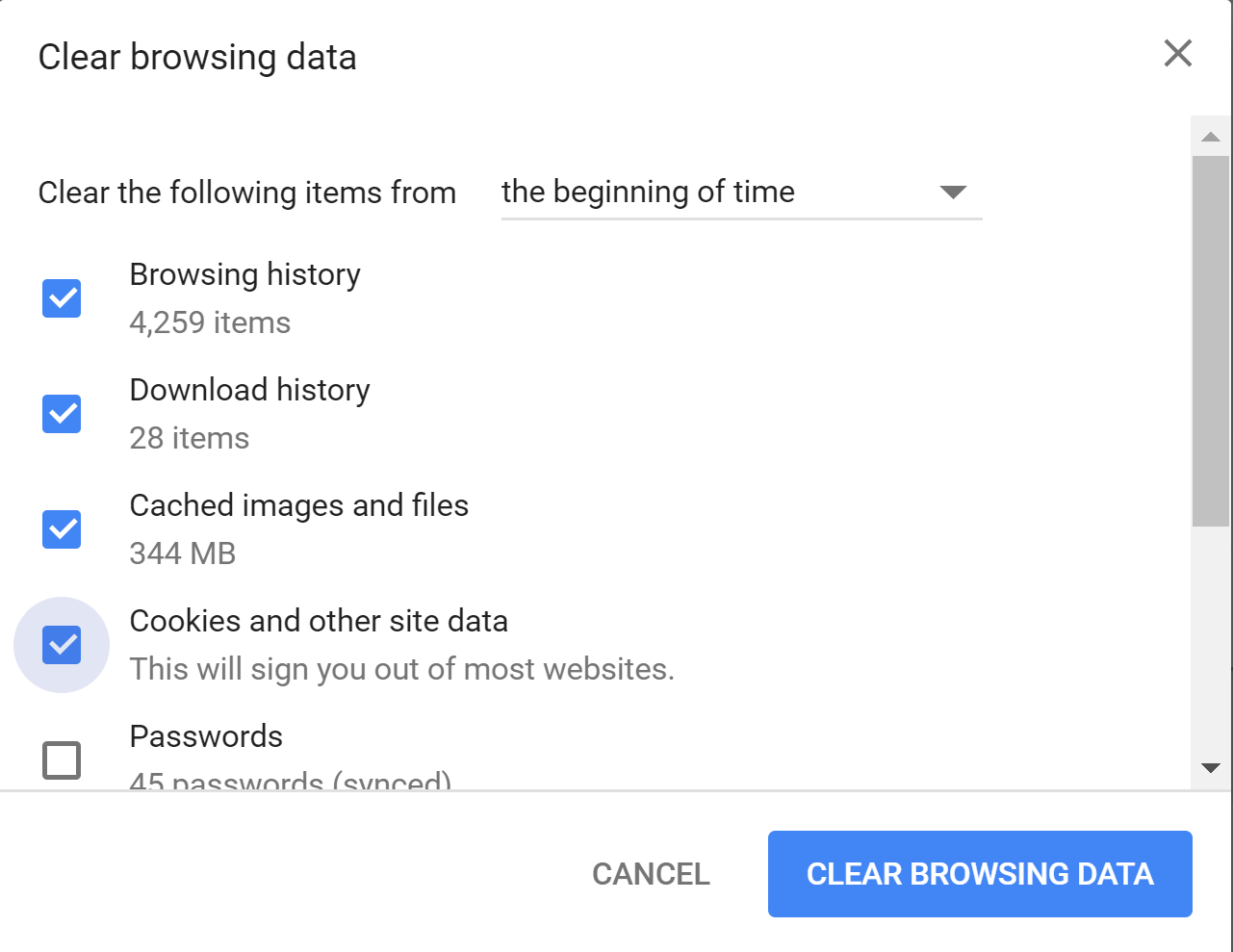
Select:
- Browsing history
- Download history
- Cached images and files
- Cookies and other site data
Click CLEAR BROWSING DATA
Mozilla Firefox
Click the Menu button just to the right of the website address bar (the horizontal stripes or hamburger icon).
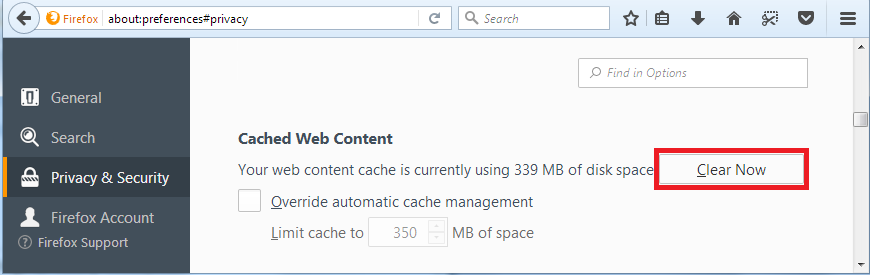
Go to Preferences > Privacy & Security
In Cached Web Content, click Clear Now.
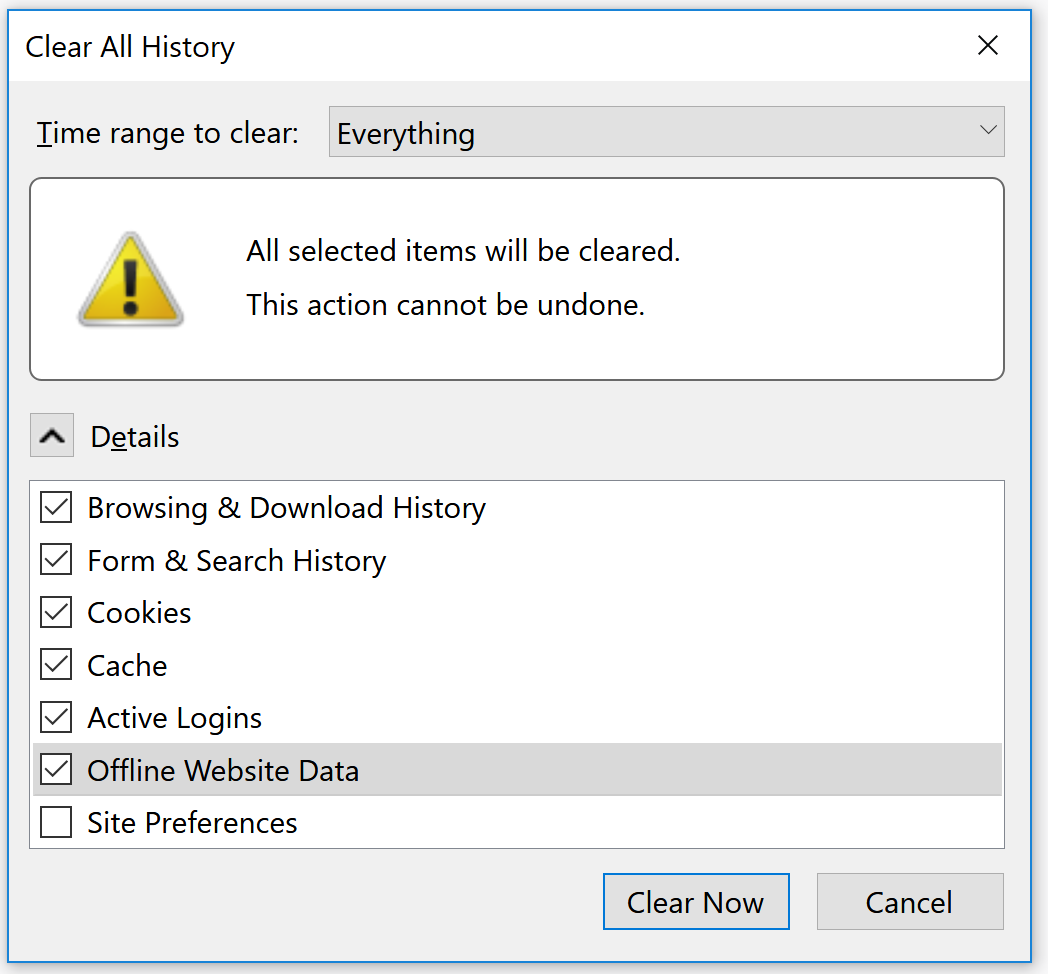
Mozilla Firefox Quantum
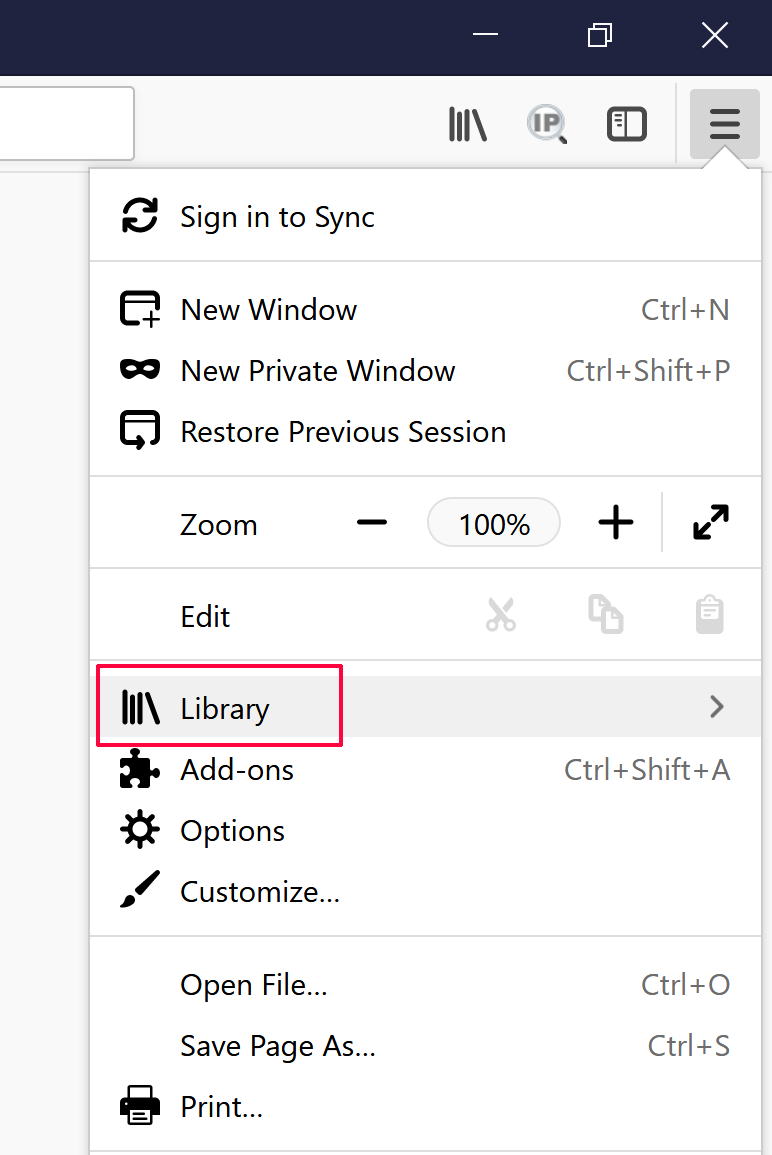
Click the Menu button just to the right of the website address bar.
Go to Library > History > Clear Recent History
Select the following and click Clear Now.
Internet Explorer 10 &11
NOTE: it is strongly recommended that Explorer not be used as a browser.
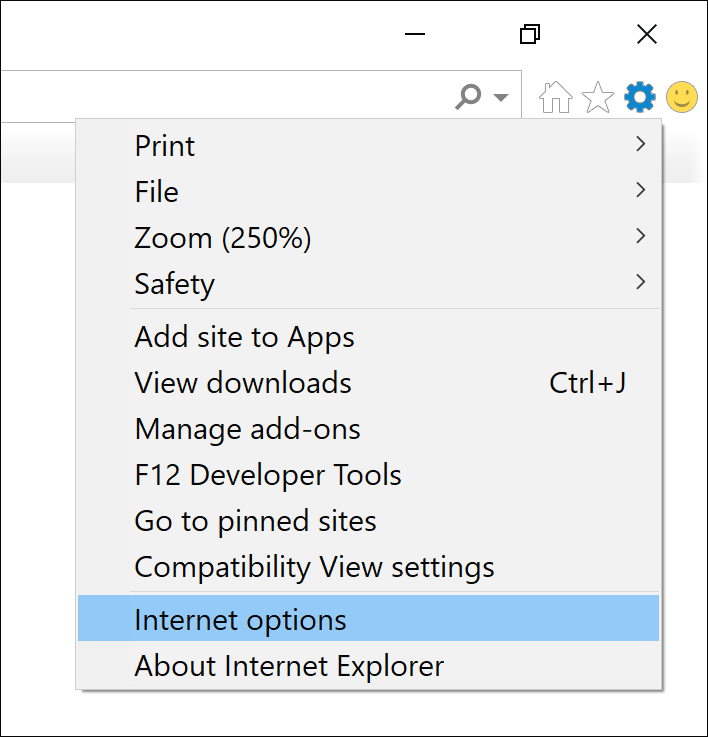
Click the Menu cog icon just to the right of the website address bar.
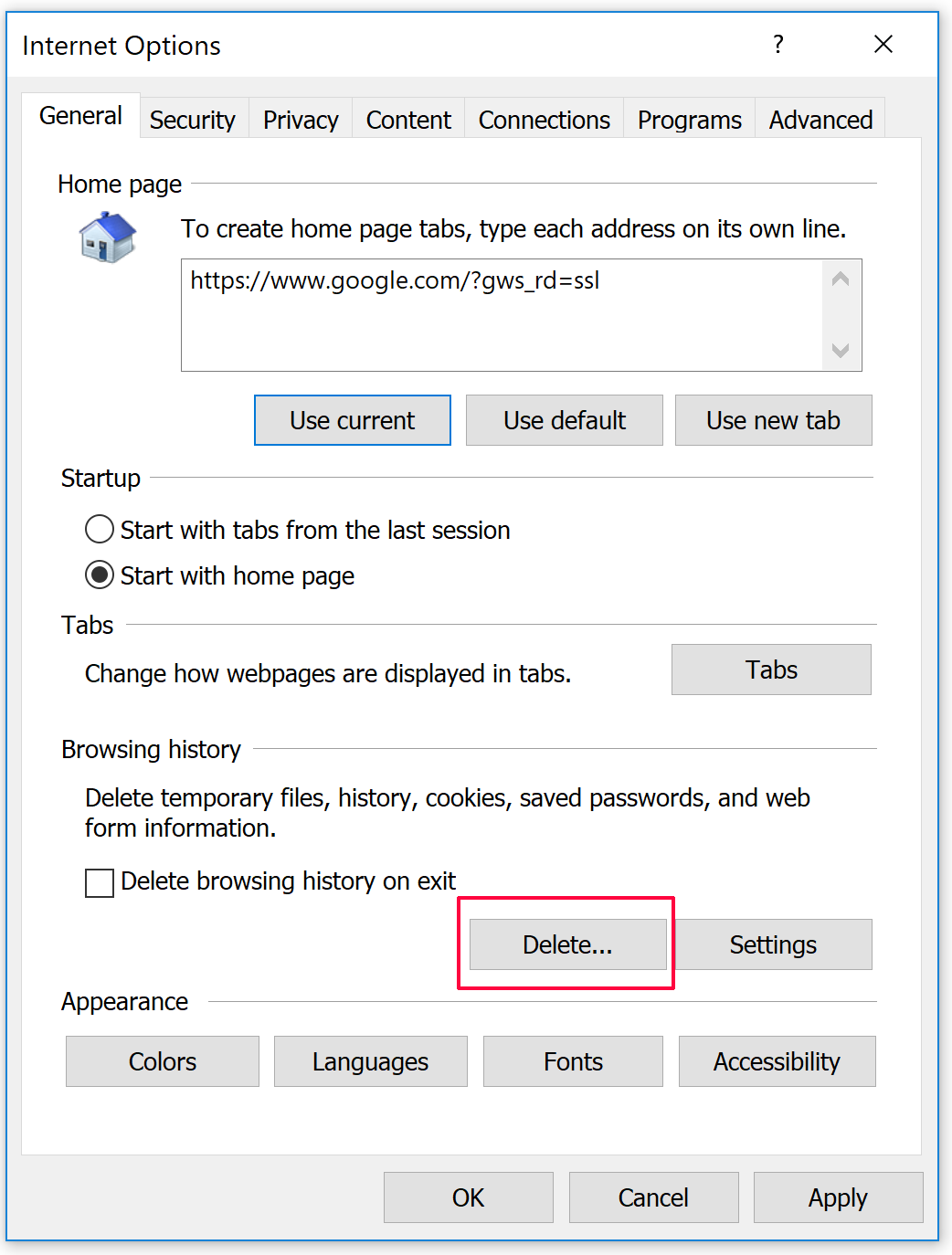
Go to Internet Options
Click Delete…
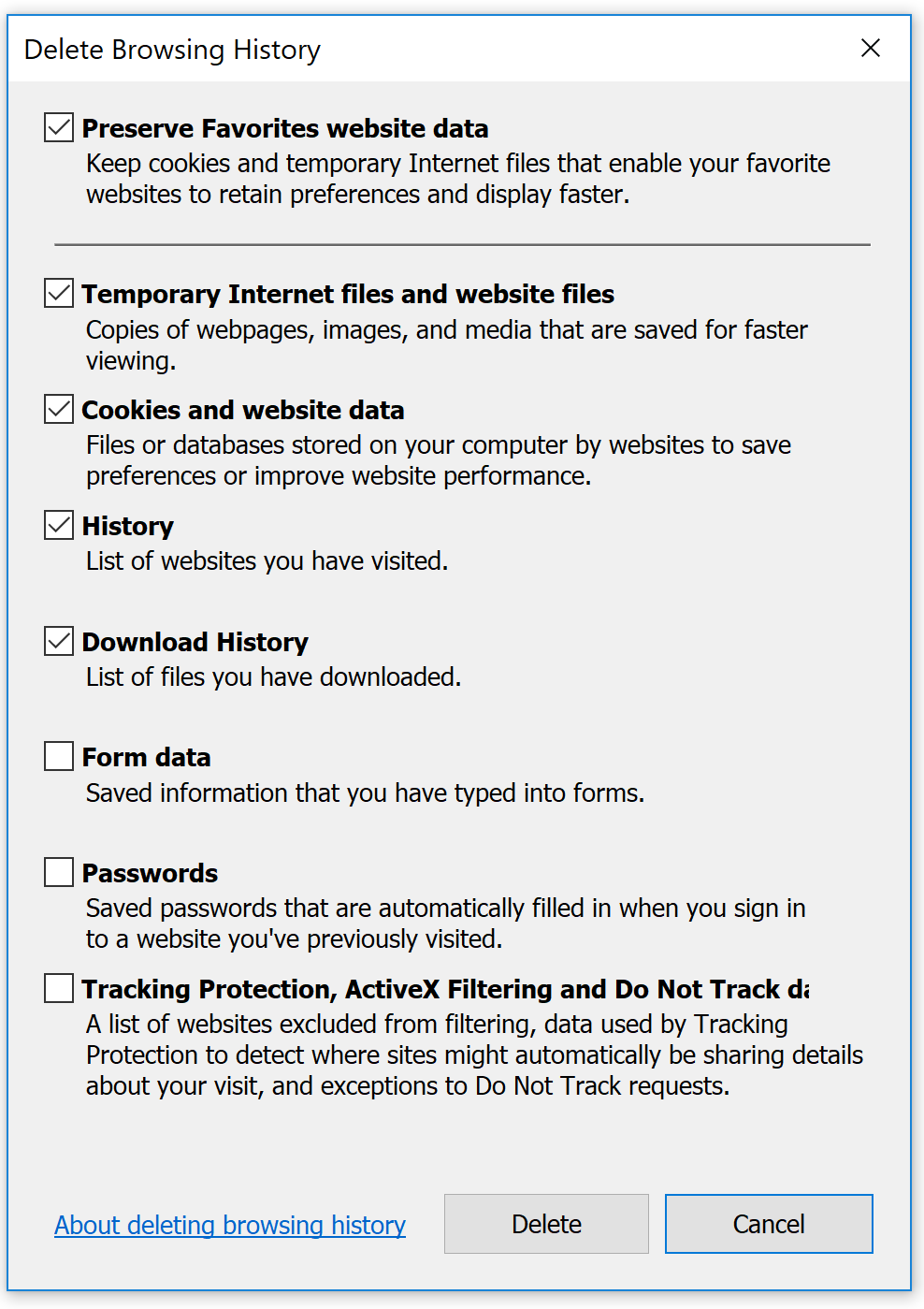
Select the following and click Delete
Microsoft Edge
Click the Menu button just to the right of the website address bar.
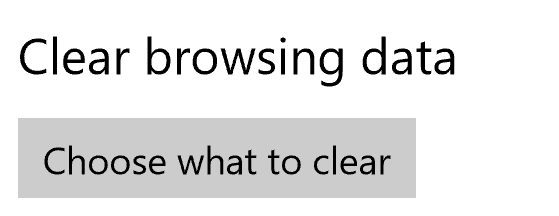
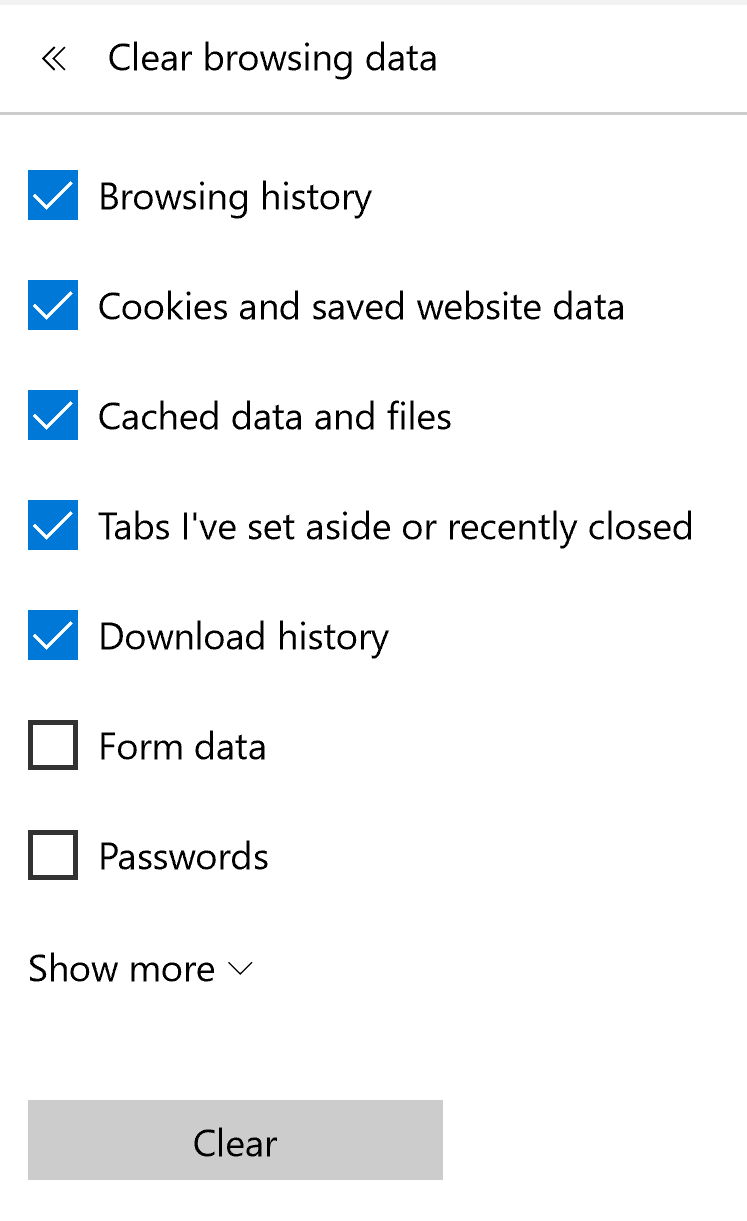
Go to Settings > Choose What to Clear.
Select the following and click Clear.
Safari
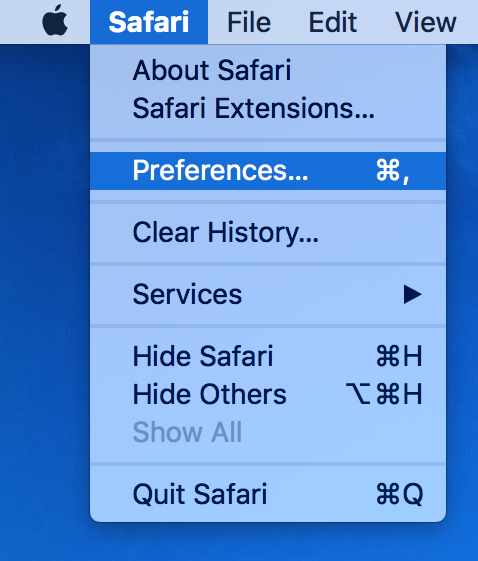
Click Safari in the menu.
Go to Preferences…
Click the Privacy tab.
Click Remove All Website Data.
Opera
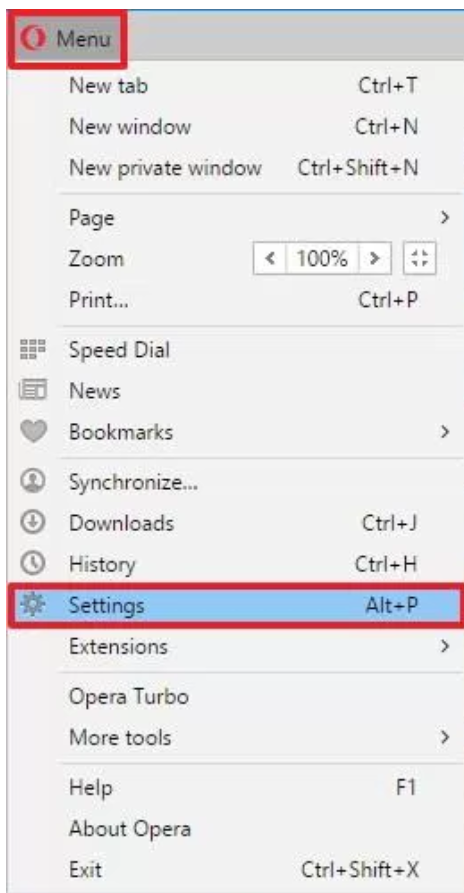
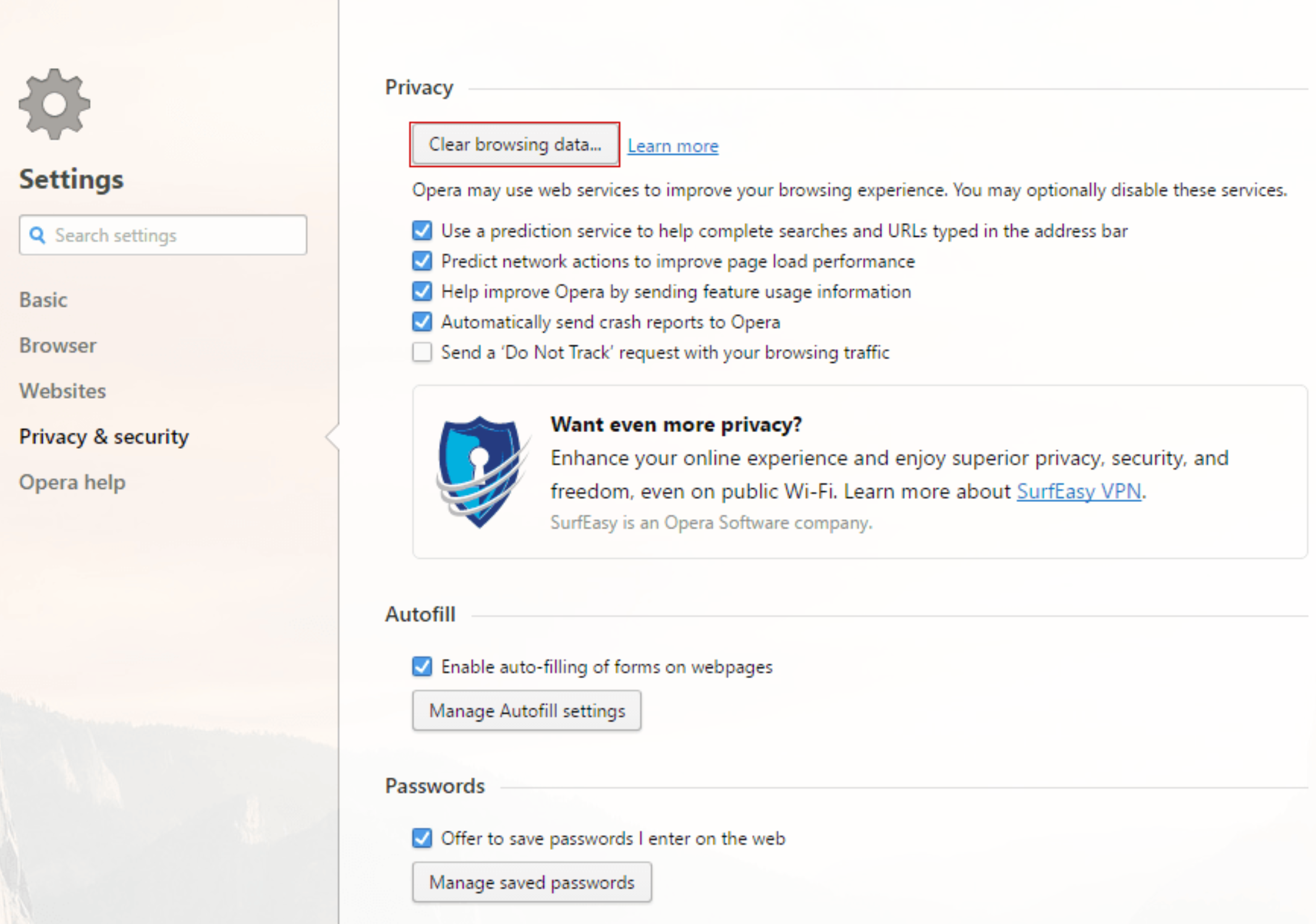
Go to the Menu at the top left.
Click Settings.
Go to Privacy & Security > Clear Browsing Data
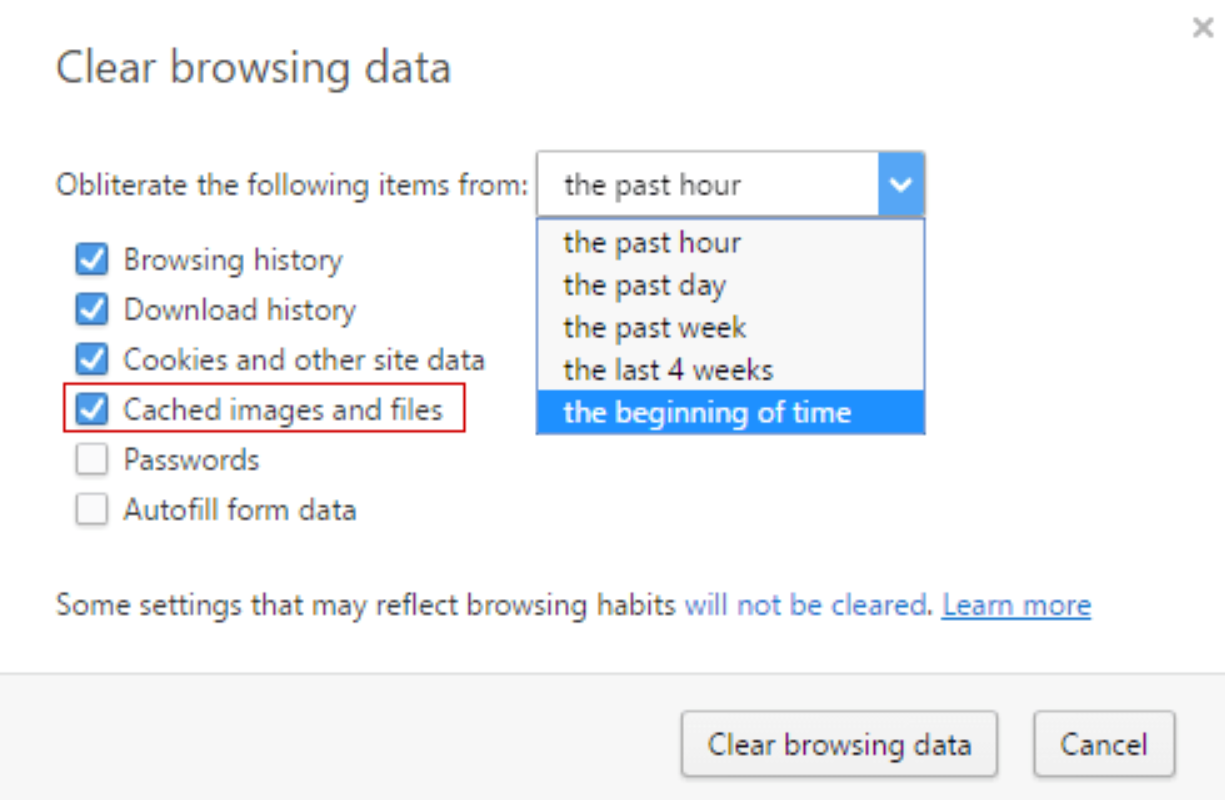
Select the following and click Clear browsing data
Last modified on June 3, 2026