Stratus Panel - Access > Protect URL
A standard HTTP Authentication restriction can be added to your website on a specific URL path. URL protection rules will apply to all domains in the Webscale STRATUS environment.
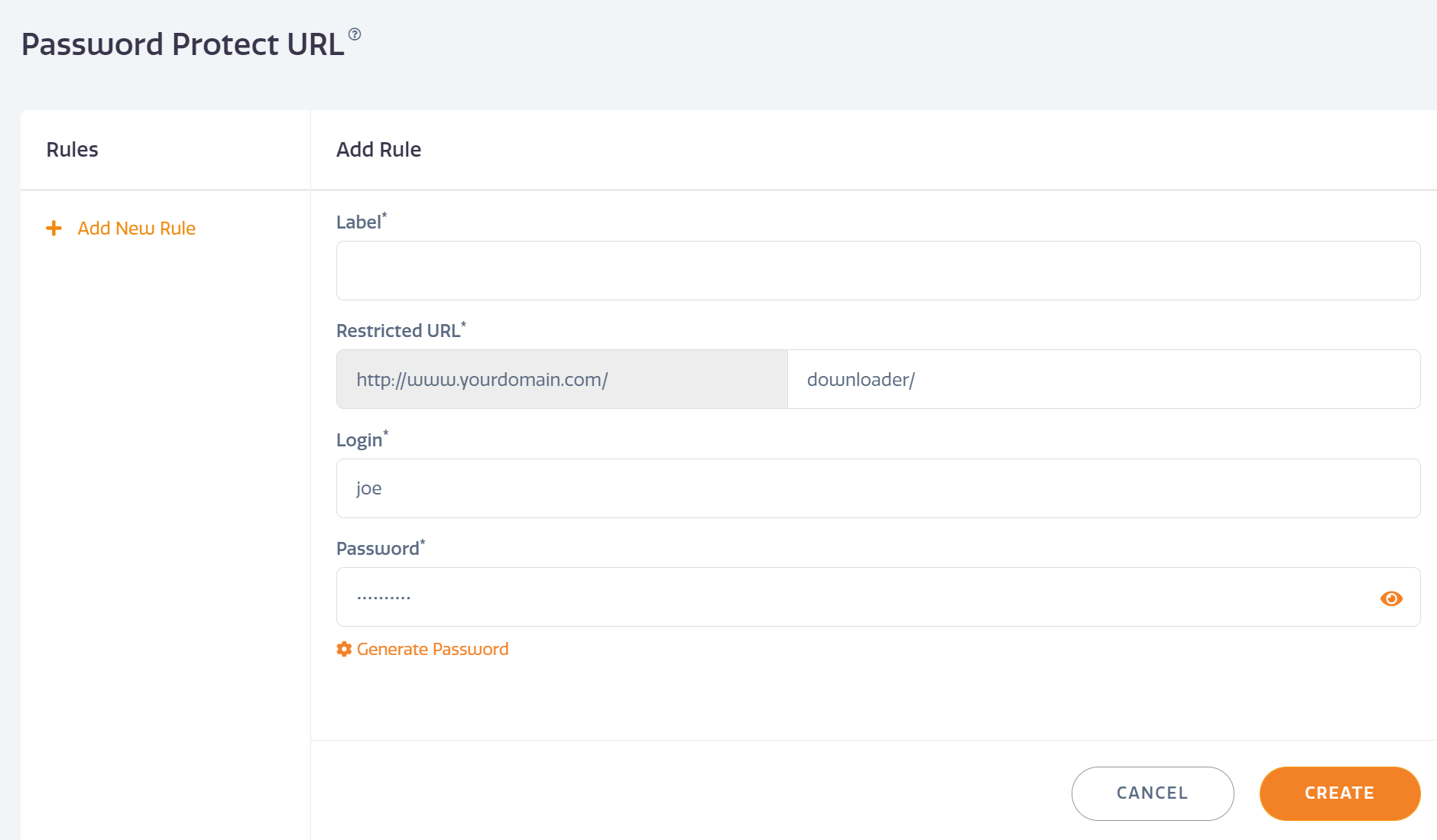
Create a Protection Rule
To create a path specific authorization rule:
- Go to Access > Protect URL in the STRATUS left sidebar menu.
- Choose + Add New Rule
- Label — Enter a name for the rule.
- Restricted URL — Enter the path to be restricted. If the store uses “.html” suffixes, include the suffix with the path. Entering a path ending in a slash ("/") will restrict all files within the directory.
- Login — Enter a login username.
- Password — Enter a password. To create a random password, click Generate Password. Once saved, passwords cannot be later seen; to view a password before saving, click the Eye Icon at the right end of the password field.
- Click Create to save your new restriction.
Edit a Protection Rule
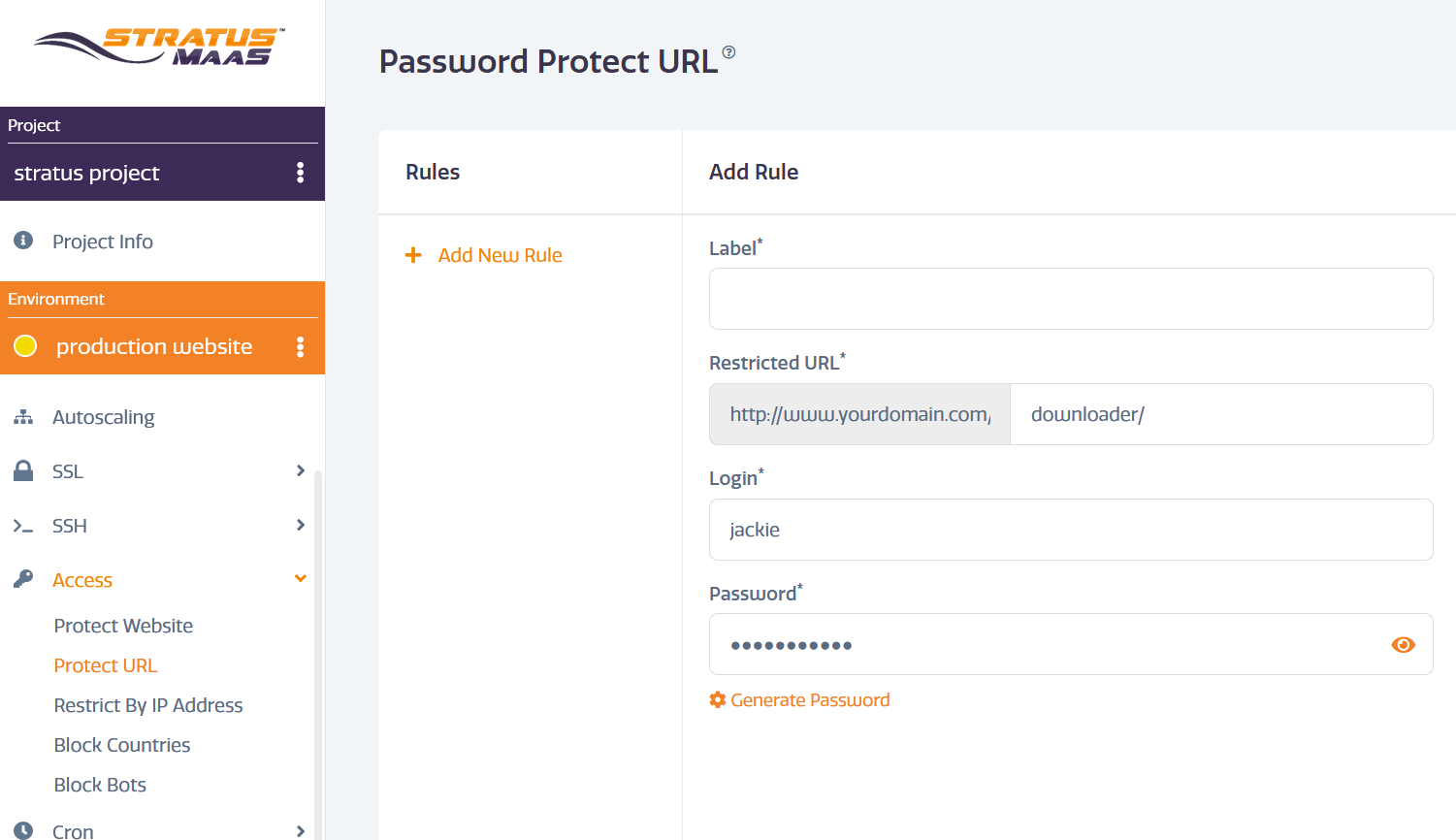
To edit an existing rule:
- Choose desired rule from the rules list.
- Update the information shown.
- Click UPDATE to save the changes to the rule.
Delete a Protection Rule
To delete an existing rule:
- Choose desired rule from the rules list.
- Click DELETE button to remove the rule.
Have questions not answered here?
Contact Support
to get more help.
Last modified on June 3, 2026