Working with Providers
Webscale uses external services, such as cloud providers and Docker registries, to provide functionality and implement features. To connect to an external service, you must create a provider. External services require authentication to access them. Each provider has a set of credentials to authenticate to the corresponding service.
You can define providers for your account through the Webscale Control Panel. After you create a provider, you can use them in blueprints for data planes and clusters. You can also use providers to implement features such as Webscale CDN.
Webscale uses blueprints to connect to and define the Webscale usage of cloud providers. Applications that are associated with a data plane are connected to the providers for their data plane. As you create blueprints, the data planes, clusters, and applications connected with the provider will display in the providers list.
Webscale supports the following public cloud service providers: Amazon, Azure, Google and CloudSigma.
Providers can also be used to store credentials to access Docker registries.
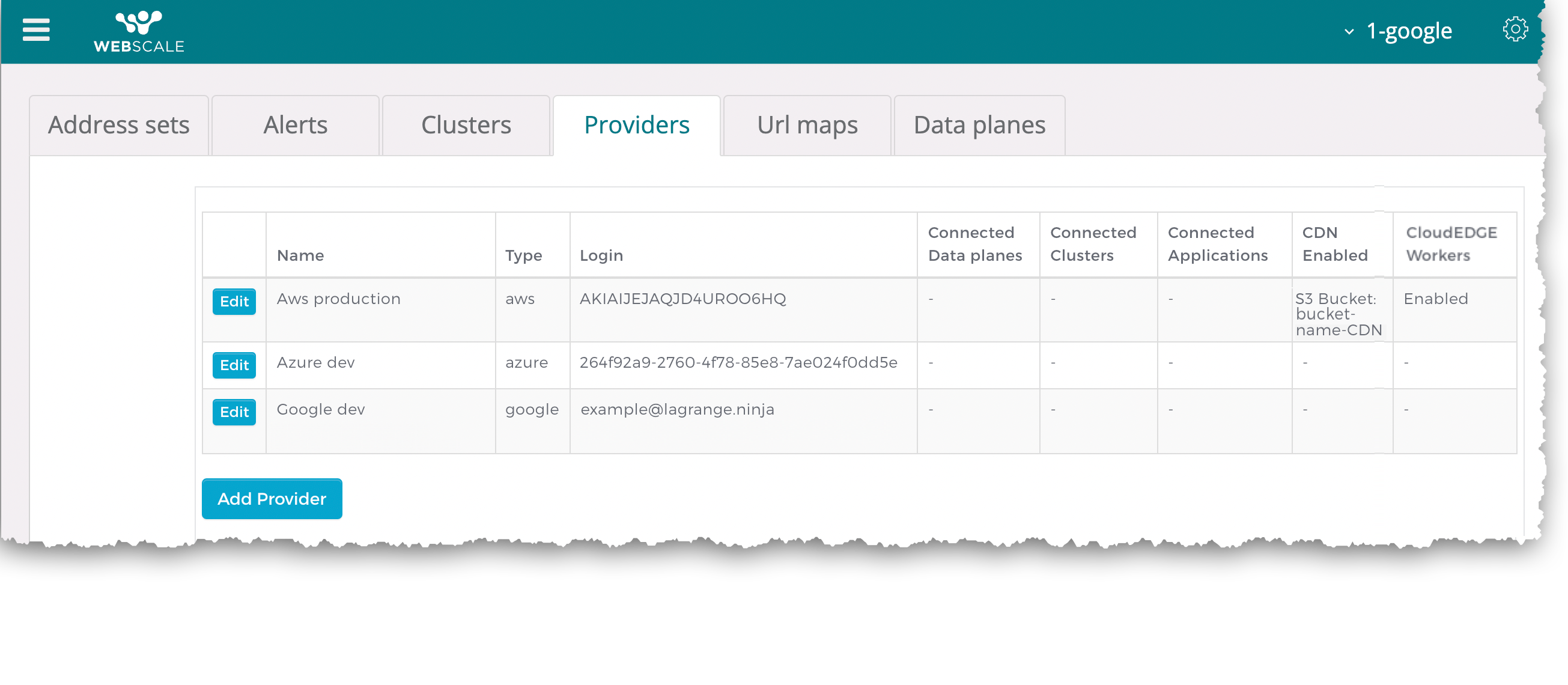
After you create a provider, it will display in your list of providers. In addition, you can edit and delete them through the Providers tab on the account settings page.
Topics
Create providers
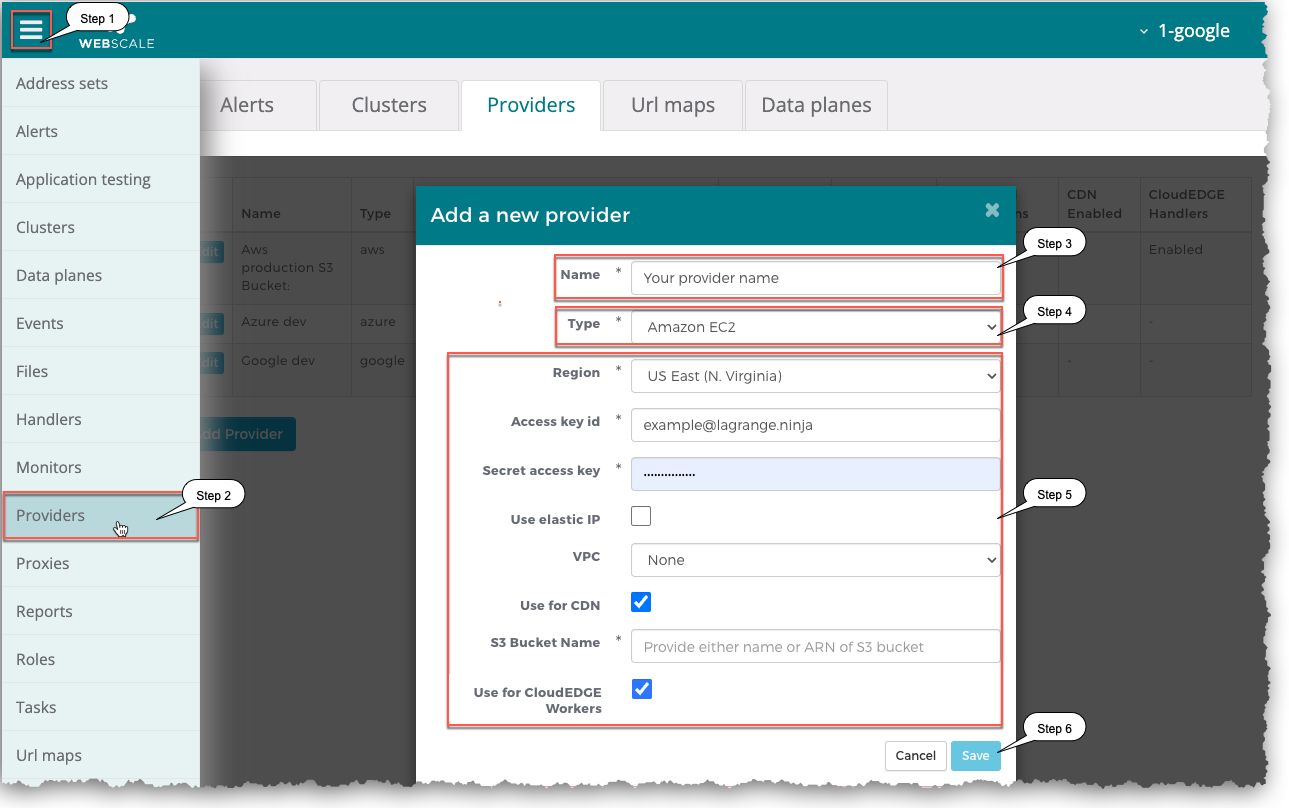
When you create a Webscale provider, enter a name and select a cloud service provider type. After you select a type, the Add Providers dialog box adds settings specific to it. For a provider with the Amazon EC2 type, you can enable Webscale CDN and CloudEDGE Workers.
The tables that follow this procedure contain descriptions of provider type settings. The provider type settings include your logins for the cloud service provider accounts. For help with determining the values for other settings, contact support .
To create a provider
- On the Webscale Control Panel page, click the menu icon on upper left of the screen.
- On the sidebar menu, select Providers.
- On the Providers tab, click Add Provider.
- Select the provider type. The settings specific to the provider type display.
- Enter settings information.
- Click Save.
Provider settings
Following are tables that contain the settings for each provider type.
Amazon
| Name | Description | Notes |
|---|---|---|
| Default region | The AWS region for the provider’s ECR, security monitoring, and handler services. A region is a geographic area that contains at least two distinct physical locations (known as “availability zones”), each of which contains clustered data centers. (Cluster blueprints can target regions other than the default selected here.) | Required |
| Access key id | Used to access your AWS account. In a customer-owned account, the key’s IAM user needs the AWS provider policy . | Required |
| Secret access key | Used to access your AWS account | Required |
| Use elastic IP | Enables using static IP addresses | Optional |
| VPC | Virtual Private Cloud. Identifies a virtual network of shared resources allocated within an Amazon Web Services (AWS) public cloud environment | Optional |
| Use for CDN | Enables Webscale CDN for your provider if you also specify the AWS S3 bucket for CDN logs. After you enable CDN for the provider, you can enable this feature for all applications that use the provider. | Optional |
| S3 Bucket Name | Name of the AWS S3 bucket for your Webscale CDN logs | Optional. Displays if you select the Use for CDN checkbox. |
| Use for handlers | Enables handlers for your provider. After you enable handlers for the provider, you can create handlers for your account. | Optional |
| Use for Security Monitoring | Enables AWS GuardDuty security monitoring for your provider. | Optional |
| Use for Kubernetes | Creates a Kubernetes service for the provider. Each Kubernetes cluster chooses its EKS cluster and that cluster’s region in its blueprint, so one provider can deploy to EKS clusters in any region. | Optional |
| Use for ECR | Creates an ECR docker registry service for the provider. | Optional |
| Docker registry endpoint | The fully qualified ECR endpoint in the format:aws-account-id.dkr.ecr.aws-region.amazonaws.com | Required if Use for ECR is checked. |
| Repositories | A list of ECR repository names as they appear in AWS. | At least one is required if Use for ECR is checked. |
AWS provider policy
The provider’s access key belongs to an IAM user in your AWS account. Webscale uses that key for the provider’s services. Stacks build their resources through the AccountProvisioner role instead.
Create a customer managed policy from the following document and attach it to that user. The document was last updated on 2026-10-19. If your policy is older, update it to match.
{
  "Version": "2012-10-17",
  "Statement": [
    {
      "Sid": "WebscaleCdnCertificateManagement",
      "Effect": "Allow",
      "Action": [
          "iam:DeleteServerCertificate",
          "iam:GetServerCertificate",
          "iam:ListServerCertificates",
          "iam:UploadServerCertificate"
      ],
      "Resource": "*"
    },
    {
      "Sid": "WebscaleCdnLogAccess",
      "Effect": "Allow",
      "Action": [
          "s3:ListBucket",
          "s3:PutBucketAcl",
          "s3:GetBucketAcl"
      ],
      "Resource": "*"
    },
    {
      "Sid": "WebscaleCdnLogProcessing",
      "Effect": "Allow",
      "Action": [
        "s3:DeleteObject",
        "s3:GetObject",
        "s3:ListBucket",
        "s3:PutObject"
      ],
      "Resource": "*"
    },
    {
      "Sid": "WebscaleCdnManagement",
      "Effect": "Allow",
      "Action": [
        "cloudfront:CreateCachePolicy",
        "cloudfront:CreateDistribution",
        "cloudfront:CreateInvalidation",
        "cloudfront:CreateResponseHeadersPolicy",
        "cloudfront:CreateOriginRequestPolicy",
        "cloudfront:DeleteCachePolicy",
        "cloudfront:DeleteDistribution",
        "cloudfront:DeleteResponseHeadersPolicy",
        "cloudfront:DeleteOriginRequestPolicy",
        "cloudfront:GetCachePolicy",
        "cloudfront:GetDistribution",
        "cloudfront:GetInvalidation",
        "cloudfront:GetResponseHeadersPolicy",
        "cloudfront:GetOriginRequestPolicy",
        "cloudfront:ListCachePolicies",
        "cloudfront:ListConflictingAliases",
        "cloudfront:ListDistributions",
        "cloudfront:ListResponseHeadersPolicies",
        "cloudfront:ListOriginRequestPolicies",
        "cloudfront:TagResource",
        "cloudfront:UpdateCachePolicy",
        "cloudfront:UpdateDistribution",
        "cloudfront:UpdateOriginRequestPolicy"
      ],
      "Resource": "*"
    },
    {
      "Sid": "WebscaleComponentViewer",
      "Effect": "Allow",
      "Action": [
          "rds:Describe*"
      ],
      "Resource": "*"
    },
    {
      "Sid": "WebscaleHandlers",
      "Effect": "Allow",
      "Action": [
        "iam:CreateServiceLinkedRole",
        "iam:GetRole",
        "lambda:CreateFunction",
        "lambda:DeleteFunction",
        "lambda:EnableReplication*",
        "lambda:GetFunction",
        "lambda:InvokeFunction",
        "lambda:PublishVersion",
        "lambda:UpdateFunctionCode",
        "lambda:UpdateFunctionConfiguration"
      ],
      "Resource": "*"
    },
    {
      "Sid": "WebscaleServiceQuotas",
      "Effect": "Allow",
      "Action": [
          "servicequotas:ListServiceQuotas"
      ],
      "Resource": "*"
    },
    {
      "Sid": "WebscaleVmManagement",
      "Effect": "Allow",
      "Action": [
        "ec2:ReleaseAddress",
        "ec2:DeleteSecurityGroup",
        "ec2:DeleteKeyPair",
        "ec2:AllocateAddress",
        "ec2:AssignPrivateIpAddresses",
        "ec2:AssociateAddress",
        "ec2:AuthorizeSecurityGroupIngress",
        "ec2:CreateSecurityGroup",
        "ec2:CreateTags",
        "ec2:Describe*",
        "ec2:DisassociateAddress",
        "ec2:ImportKeyPair",
        "ec2:RevokeSecurityGroupIngress",
        "ec2:RunInstances",
        "ec2:TerminateInstances",
        "pricing:GetAttributeValues",
        "iam:PassRole",
        "iam:ListInstanceProfiles"
      ],
      "Resource": "*"
    },
    {
      "Sid": "WebscaleDnsManagement",
      "Effect": "Allow",
      "Action": [
        "route53:ChangeResourceRecordSets",
        "route53:GetChange",
        "route53:ListHostedZones",
        "route53:ListHostedZonesByName",
        "route53:ListResourceRecordSets"
      ],
      "Resource": "*"
    },
    {
      "Sid": "WebscaleKubernetesManagement",
      "Effect": "Allow",
      "Action": [
          "eks:DescribeCluster",
          "eks:ListClusters"
      ],
      "Resource": "*"
    },
    {
      "Sid": "AllowGetAuthToken",
      "Effect": "Allow",
      "Action": [
          "ecr:GetAuthorizationToken"
      ],
      "Resource": "*"
    },
    {
      "Sid": "AllowImagePull",
      "Effect": "Allow",
      "Action": [
          "ecr:BatchCheckLayerAvailability",
          "ecr:BatchGetImage",
          "ecr:DescribeImages",
          "ecr:DescribeRepositories",
          "ecr:GetDownloadUrlForLayer",
          "ecr:ListImages"
      ],
      "Resource": "*"
    },
    {
      "Sid": "ManageAppProxies",
      "Effect": "Allow",
      "Action": [
          "route53:AssociateVPCWithHostedZone",
          "route53:CreateHostedZone",
          "route53:ChangeTagsForResource",
          "route53:GetHostedZone",
          "route53:ListTagsForResource",
          "ec2:DeleteTags",
          "ec2:DescribeTags"
      ],
      "Resource": "*"
    },
    {
      "Sid": "MonitorCodeBuild",
      "Effect": "Allow",
      "Action": [
        "codebuild:BatchGetBuilds",
        "logs:GetLogEvents"
      ],
      "Resource": "*"
    }
  ]
}
Azure
| Name | Description | Notes |
|---|---|---|
| Tenant id | Unique identifier for your Azure tenant, which represents your organization in Azure Active Directory. A tenant is automatically created when your organization signs up for a Microsoft cloud service subscription. Not an organization or domain name | Required |
| Client id | Unique identifier for the application that is set up through the Azure Active Directory | Required |
| Client secret | Password exclusive to the application and authorization server | Required |
| Subscription | Logical container used to provision resources in Azure | Optional |
CloudSigma
| Name | Description | Notes |
|---|---|---|
| Location | Location within a geographic area designed to provide cloud services to the area | Required |
| Email address | Used to access your account | Required |
| Password | Used to access your account | Required |
| Use static ip | Enables using static IP addresses with the account | Optional |
| VLAN | Created from one or more local area networks, a Virtual Local Area Network (VLAN) combines collections of devices into one logical network | Optional |
| Name | Description | Notes |
|---|---|---|
| Project ID | Unique identifier for your project, which organizes all of your Google Cloud resources | Required |
| Email address | Email address associated with your project | Required |
| Private key | Private RSA key that enables generating a token to access your Google Cloud account | Required |
| Network | Virtual Private Cloud (VPC) network that distributes traffic from Webscale | Required |
Docker Registry
| Name | Description | Notes |
|---|---|---|
| Docker Registry Endpoint | The fully qualified endpoint at which the registry is accessible. | Required. |
| Public | If checked, indicates that credentials are not required to access the registry. | Optional |
| Repositories | A list of repositories accessible at the endpoint specified. | At least one is required. |
| Username | The username used to access the docker registry. | Required if Public is not checked. |
| Password | The password used to access the docker registry. | Required if Public is not checked. |
For DockerHub, the Docker registry endpoint is index.docker.io. DockerHub Public repository names are often prepended with library/. For example: library/nginx.
Section
| Name | Description | Notes |
|---|---|---|
| Account Id | An ID referencing your Section account. | Required |
| API token | An API Token with access to the account provided in Account Id. | Required |
| Use for CDN | Enables Webscale CDN for your provider. After you enable CDN for the provider, you can enable this feature for all applications that use the provider. | Optional |
| Webscale Owned | Prevents unauthorized users from managing this provider. | Optional |
Edit providers
A provider holds the credentials Webscale uses in your cloud account. Changing its credentials or region can break the applications and clusters that use it. Contact support before you change one of those fields.
To edit a provider
On the Webscale Control Panel page, click the menu icon on the upper left of the screen.
On the sidebar menu, select Providers.
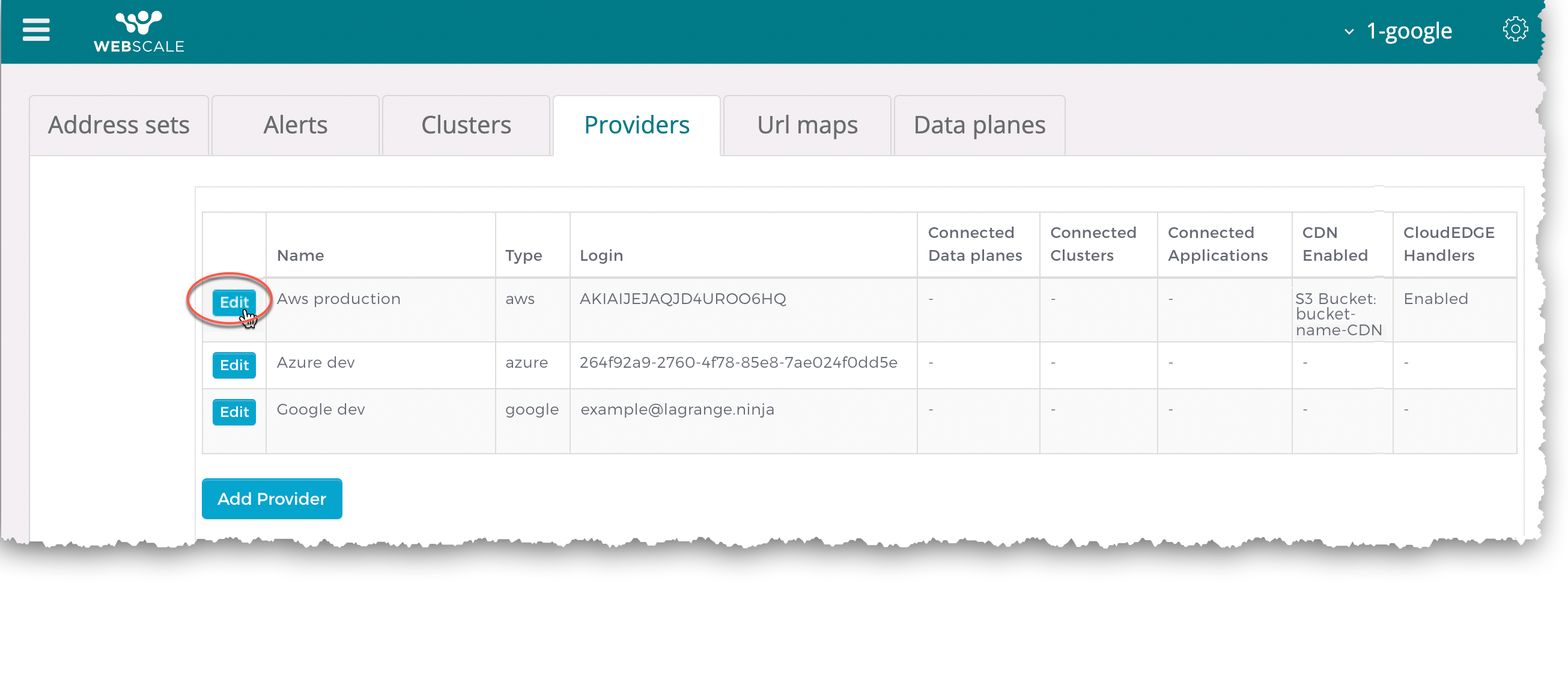
On the Providers tab, click the Edit button for the provider.
In the Edit provider dialog box, modify settings.
Click Save.
Delete providers
You cannot delete providers used in blueprints. To delete a provider in use, discard any blueprints that include the provider before deleting it.
Deleting a provider, which defines the relationship between your Webscale account and cloud service, can result in serious problems. Proceed with caution and contact support before deleting a provider.
To delete a provider
On the Webscale Control Panel page, click the menu icon on upper left of the screen.
On the sidebar menu, select Providers.
On the Providers tab, click the **Edit **button for the provider.
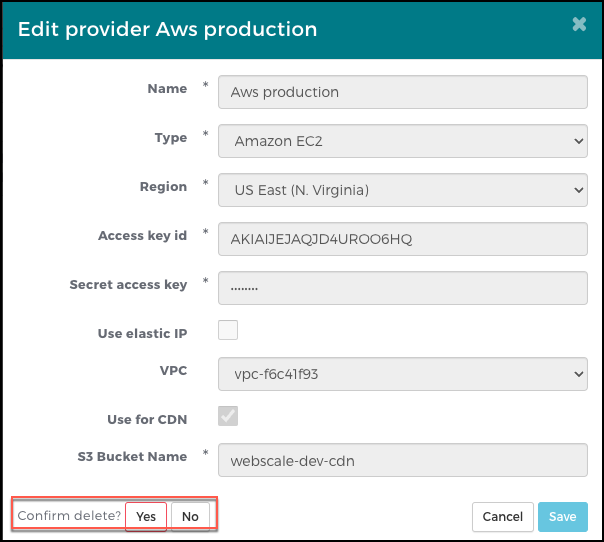
In the Edit provider dialog box, click Delete.
To confirm deleting the provider, click Yes.
Further reading
Last modified on October 23, 2026